Showing posts with label and. Show all posts

Wednesday, March 11, 2015

More Apps Script APIs and Features

Developers like you have built amazing scripts with Apps Script, and we want to make Apps Script even more useful. Weve been working hard to add a variety of new APIs and features in Google Apps Script. Today, were ready to share a few of them with you.


New in Document service: named ranges, bookmarks, setting cursor or selection, and undo

Named ranges are a popular feature of the Spreadsheet service; and now, you’ll be able to do something similar in the Document service. With named ranges, your scripts can tag a section of a Google Doc for later reference. For example, a bibliography script could set a named range on every citation in a document, then easily update the citations in the future.


You can use a similar API to manage bookmarks, too. Unlike named ranges, bookmarks are visible to the user and allow you to link to a particular place in a document.

Also for Google Docs, weve added the server-side methods setCursor(position) and setSelection(range) to change the users cursor position or active selection, plus a client-side method, google.script.host.editor.focus(), which switches the browser focus from a sidebar or dialog back to the document.

Oh, and hey: the Undo command in Google Docs can now revert changes made by a script.


New in HTML service: NATIVE mode by default

If youve used HTML service much, youll know that the Caja security sandbox has two modes. NATIVE mode imposes fewer restrictions than EMULATED mode and generally runs faster. As of today, NATIVE is now the default if you have not specified which mode your script should use. In a few edge cases, this may affect how existing web apps operate; if so, simply append .setSandboxMode(HtmlService.SandboxMode.EMULATED) to your HtmlOutput object to restore the old behavior.


Revised Properties service

In preparation for future improvements to Apps Script, weve revamped script properties and user properties, combining them into a unified Properties service and adding the notion of document properties, which are (surprise!) specific to a particular document, but shared among all collaborators. The biggest change is that user properties are no longer shared between scripts, but our guide to the Properties service provides all the details. As part of the change, the old ScriptProperties and UserProperties services have been deprecated, although they will continue to function in existing scripts until a sunset date is announced.


Deprecation of Finance service

We’re excited to bring you these new tools. With these new additions, we have also deprecated Finance service. It will remain available for the next six months but will be turned off on September 26, 2014.


Saurabh Gupta   profile | twitter | blog

As the product manager for Google Apps Script, Saurabh is responsible for Apps Script’s overall vision and direction.

Wednesday, March 4, 2015

LN 04 Use Padlet to Break the Ice Brainstorm Share ideas and Have Fun!


"Awesomely Simple and Powerful!"
- Zaid Ali Alsagoff

(What are you waiting for?)


PADLET?
Padlet (early known as Wallwisher) gives you a blank wall, and you can basically put anything you want on it, anywhere. Simple, yet powerful.

It basically empowers people to express their thoughts on a common topic easily. It works like an online sheet of paper where people can put any content (e.g. images, videos, documents, text) anywhere on the page, together with anyone, from any device.

Here is a video tutorial to get you started:


YouTube version:


Yes, you can even use it to present (or curate) learning content. I am not kidding:


Created with Padlet

POWERFUL?

This is why Padlet is simple, yet powerful:

  • Easy-to-Use
     Simple interface, double click to add posts (or double tap for touch screens), drag and drop, auto save, etc.  WOW!  
  • Instant Collaboration
    Everyones activity can be seen on the wall instantly. Page reloads is history.
  • Multimedia
    You can add any kind of file/links - videos, images, documents. You can paste links (URLs) to (YouTube) videos (view-able from the wall). Can drag a document from your computer. Can take pictures with your computer devices.  
  • Embeddable
    You can embed a wall in blogs and other websites (How?).
  • Privacy 
    You are empowered to keep the wall(s) private by adding password lock or specific email addresses. You can also moderate posts, by requiring approval by one of the moderators before they show up on the wall for the other readers.
  • Exporting
    You can export your Walls to PDF, Excel, and CSV formats with a single click.
  • Customized URL
    Every wall has an unique URL that you can give out. You can now also customize the ending of your URL to your Wall (E.g. http://padlet.com/wall/myawesomewall) or your Domain URL (E.g. http://myawesomewall.com ).
  • Notifications
    You can get e-mail notifications on updates to your wall, or subscribe to them via RSS.
  • Design & Layouts
    You can easily spice up the backgrounds with all sorts of cool designs and images. You can change your layout to Stream to view group discussions more structured (linear chat like format, with time-stamps of when someone commented).

Check out Padlets user guide (Knowledge Base) to discover more.


FOR LEARNING?

What about Padlet for learning and teaching?

While you dont need brains to use Padlet, you might need to stretch your imagination to realize how easy and powerful this tool could be to empower and energize collaborative learning experiences. Here are some examples on how Padlet can be used for:
  • Ice breaker to get to know one another (Participants/Students upload photos of themselves and then write one or two sentences for others to get to know them better).  
  • Brainstorming ideas, problem-solving, decision-making, or solutions.
  • Q&A sessions before/during/after a lecture or class.
  • Open-ended (formative) question or reflection sessions, where students all share their answers on the Padlet wall;
  • Noticeboards or making course announcements.
  • Bookmarking and curating resources or video playlists. 
  • Group/Class/Community Discussions.
  • Adventure and travel maps (field trips). 
  • Developing a website. 
  • Etc.
Lets not stop there, why not explore Padlet as a potential tool for organizing a students e-portfolio.

Actually, if we stretch our imagination even further, we could perhaps use Padlet even for an entire class (or even course) from the lecture (or lesson) to the assignment (Full Article):
  1. Lesson/Lecture/Tutorial
    Researching, collecting and curating content for your lesson does not have to be a tiresome task across folders, sites, emails and links.
  2. Group Discussion
    Use Padlet for a group discussion before/during/after a lecture (or class).
  3. Feedback
    Your lecture is coming to an end and you want to take check the students’ understanding of the subject or topic.
  4. Assignments/Projects
    Students can work individually or as groups using Padlet. For example, each group sets up a wall that discusses or visualizes their project, which can later be made available to the other students when completed. You can even make it a competition!
Whether you want to use Padlet for everything in online learning is probably a bit extreme, but no doubt this tool can be used in many creative ways to engage learners and have some fun while learning takes place.


ALTERNATIVE TOOLS?

If you want an alternative tool to teach a class or share digital content with activities, I would probably recommend Edcanvas (for now), which provides more structure, control, features and even provides a quiz engine with reporting.

If you want a dedicated tool for collaborative bookmarking or social curation of online resources, I  would recommend Pinterest or Scoop.it instead. 

Though, if you want a simple and powerful tool to easily break the ice (of new group), brainstorm, share ideas and have some quick fun...Padlet is my tool to the rescue :)

Monday, February 16, 2015

Amazing Weight Loss And Health Tips

Amazing Weight Loss And Health Tips

Download Now

Removing Extreme Values and Outliers with NEST

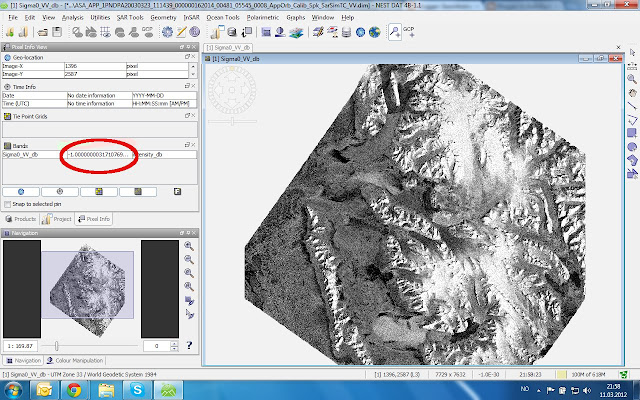
Values outside of the processed SAR image should be NAN, i.e. "no value" and usually are, but at some point in my processing chain -- I think when converting the calibration to dB -- the NAN value is converted to a value of "-1E-30" For further processing, I wish to get these values to NAN again. Especially when mosaicing, the values of overlapping areas of several SAR images should not be influences by this invalid outlier


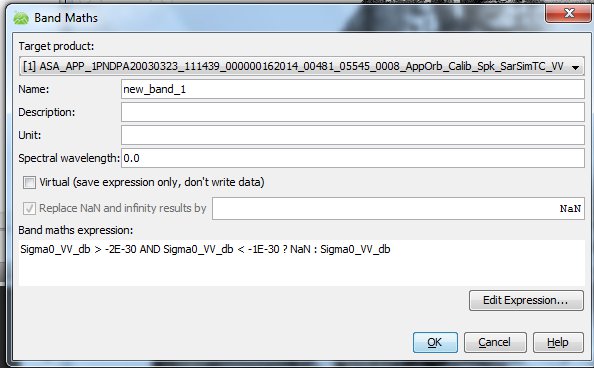
To change band values I choose Utilities>Band Math and get the following windows:


The Band Math uses a C-code If-expression which in this case says: If the image value is between -1E-30 and -2E-30, then replace it by NaN, otherwise keep the original value.

The following is not very clear to me -- You have to deselect "virtual" and the result is written into a new channel (save your file afterwards).

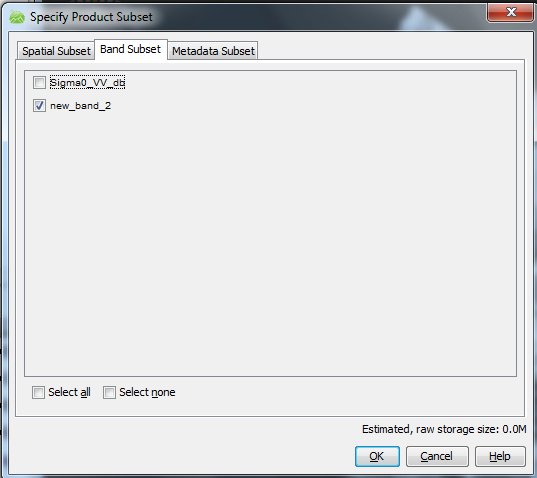
It would seem that you then simply could delete the original channel and retain the new band, but that does not seem to work, somehow the new band is still referenced to the original one. You have to choose Utilities>Spatial Subset from View to do the job. Here I go straight to the "Band Subset" tab and deselect the original band:


If I know choose "ok", you get a new product with the one corrected channel, which you then can save to disc.

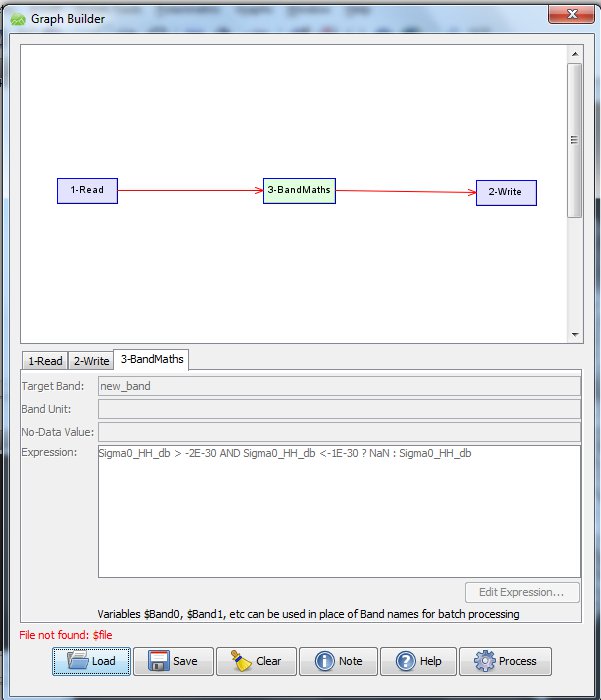
This is of course too tedious if you have dozens of images, so to do this in batch mode, I create the processing line in "Graph Builder"


Then I save this graph as an XML file. You edit this XML-file so that the input and output file names have a place holder "$file" and "$target". Look in 1-Read that it reads "<file>$file</file>" and in 2-Write that it reads "<file>$target</file>".


Now you create a RemoveOutliers.bat file containing


for /r C:Usersmaxlocation_of_files %%X in (*.dim) do (gpt   C:Usersmaxlocation_of_XMLfile RemoveOutliers.xml -Pfile="%%X"  -Tfile=" C:Usersmaxlocation_of_new_files\%%~nX.dim")

What happens here?
  1. The for-command goes through the directory containing your files to find files named "*.dim" and passes the file name to "%%X".
  2. For each of these input files "-Pfile="%%X", the NEST command "gpt" applies the Graph Builder production chain saved in "RemoveOutliers.xml" 
  3. The output is saved in the parameter -Tfile, which here is written "%%~nX.dim", the same filename but in a new directory (but you also can give it a new name like   "%%~nX_NaN.dim" if you wish)
You navigate the DOS window (type "cmd" at Windows Start> "search programs and files" to open it) to the directory containing RemoveOutliers.bat, then type "RemoveOutliers.bat" and all scenes in the specified folder will be processed.

Curiously, and conveniently, if you run Band Math using "gpt" from commandline, the new file only contains the new band, so no reason for manually deleting the original band as in the NEST GUI version above is needed.

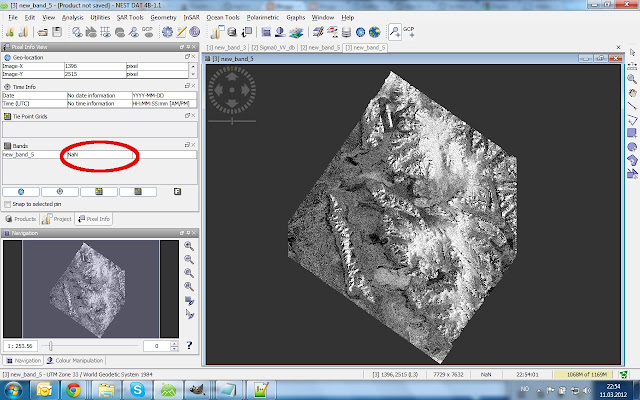
The Result (what is dark outside the scene is now NaN)


Thursday, February 5, 2015

Complete Ms Office Access Video Tutorials in Urdu and Hindi


Complete Ms Office Access Video Tutorials in Urdu and Hindi

Microsoft Access

Ms Access 2007/2010 is a software which is used to create databases. It is a Microsoft product and very easier to use. You can use it by installing Ms Office 2007/2010. You can create databases as much as you need. Microsoft Access has unlimited storage for databases. It can be used for making small databases for school students data, company data storing or for a corporation. However, it can also be used to create databases for your website or any other application. You can connect it with Ms Excel 2007 as well. It has an easy way of making tables and design tables. If you want to be expert in Database Management Systems then Ms Office Access is a great choice for you to start with.


Microsoft Access Complete Tutorial (11)


Microsoft Access Complete Tutorial (24)


Need Help?
                If you need help regarding any computer course, just comment below the post. Also sharing this post is a small contribution from your side. I will be thankful to you, if you recommend this blog to your friends and share our efforts with everyone.


Note: All videos are hosted on YouTube.com, so if you are in Pakistan then first open YouTube and then watch these videos.

Monday, February 2, 2015

Free PowerPoint add in to record lectures for flipped classroom and courses

WizIQ, an education platform that connects teachers and students online has released a free PowerPoint add-in called WizIQ Recordor. WizIQ Recordor lets teachers create video lectures (MP4) for offline consumption by students. Teachers can record their live audio along with PowerPoint slides and can either share video link with their students or add the video to their online course.

Recordor is an easy-to-use authoring tool that creates synchronized video lectures. The only disadvantage it has is that teachers can only record their audio and not their video(from webcam) or any pre-recorded audio or video file. Adding a functionality to let teachers sync any audio or video file with slides to create a synchronized video lecture would be a great thing to do since this functionality is missing in PowerPoint as well.